Introduction
SSO integration configuration using OpenID Connect (OIDC) involves both Okta and OpsRamp platforms to configure redirects to your custom branding URL. OIDC is a modern authentication protocol built on top of OAuth 2.0 that enables secure user identity verification.
Prerequisites
- Partners register with OpsRamp to get login credentials.
- Provide a custom branding URL, such as
.opsramp.com. - An Okta account with permissions to create and manage applications.
Configure Okta OIDC Application
Before configuring OpsRamp, set up an OIDC application in Okta:
Log in to your Okta Admin console.
Navigate to Applications > Applications and click Create App Integration.
Select OIDC - OpenID Connect as the Sign-in method.
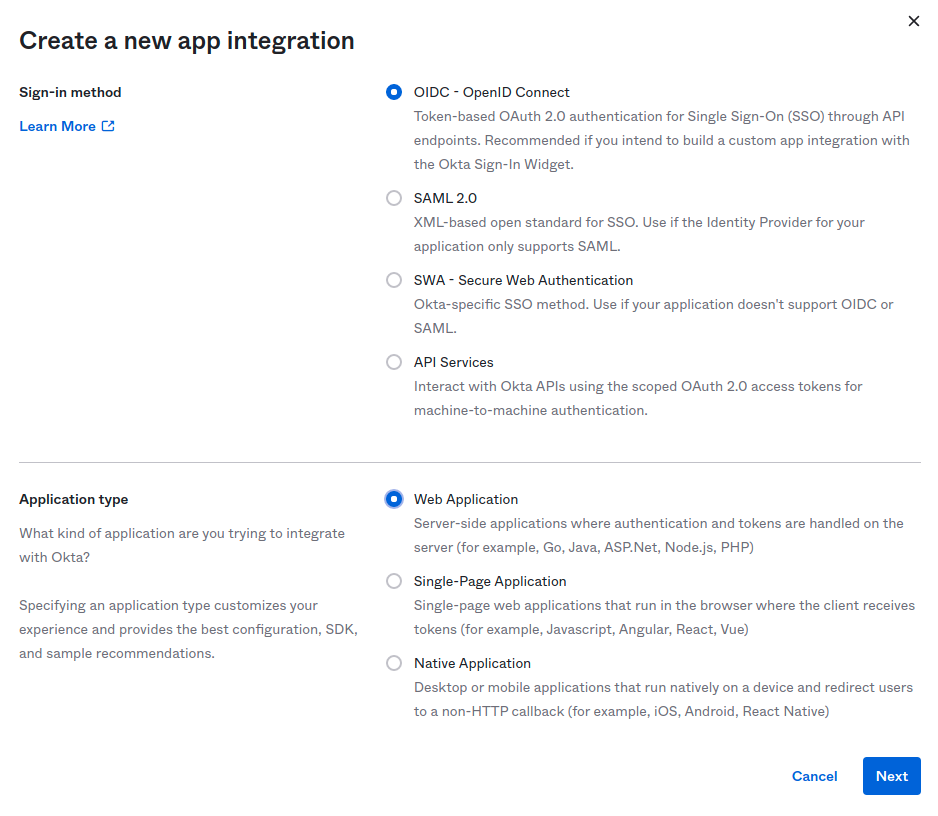
Select Web Application as the application type and click Next.
On the New Web App Integration page, configure the following:
- App integration name: Enter a name, for example,
OpsRamp OIDC. - Grant type: Select Authorization Code.
- Sign-in redirect URIs: Enter the OpsRamp callback URL.
Example:https://<yoursubdomain>.app.opsramp.com/sso/oidc/callback - Sign-out redirect URIs: Enter the OpsRamp logout URL.
Example:https://<yoursubdomain>.app.opsramp.com
- App integration name: Enter a name, for example,
Under Assignments, select the appropriate controlled access option.
Click Save.
On the application’s General tab, note the following values:
- Client ID
- Client Secret (click Show to reveal)
Navigate to Security > API > Authorization Servers and select your authorization server (for example,
default).From the Metadata URI, open the discovery document and note the following endpoint URLs:
- Issuer (Issuer URL)
- authorization_endpoint (Authorization Endpoint)
- token_endpoint (Token Endpoint)
- jwks_uri (JWKS URI)
- end_session_endpoint (Logout URL)
Example Metadata URI:
https://<youroktadomain>/oauth2/default/.well-known/openid-configuration
OpsRamp Configuration
- Click All Clients, select a client.
- Click Setup > Account.
- Select the Integrations tile.
- The Installed Integrations screen is displayed, with all the installed applications. Click + ADD on the Installed Integrations page.
- If you do not have any installed applications, you will be navigated to the Available Integrations page. The Available Integrations page displays all the available applications along with the newly created application with the version.
- Search for Okta using the search option available. Alternatively, use the All Categories option to search.
- Click +Add on the Okta tile.
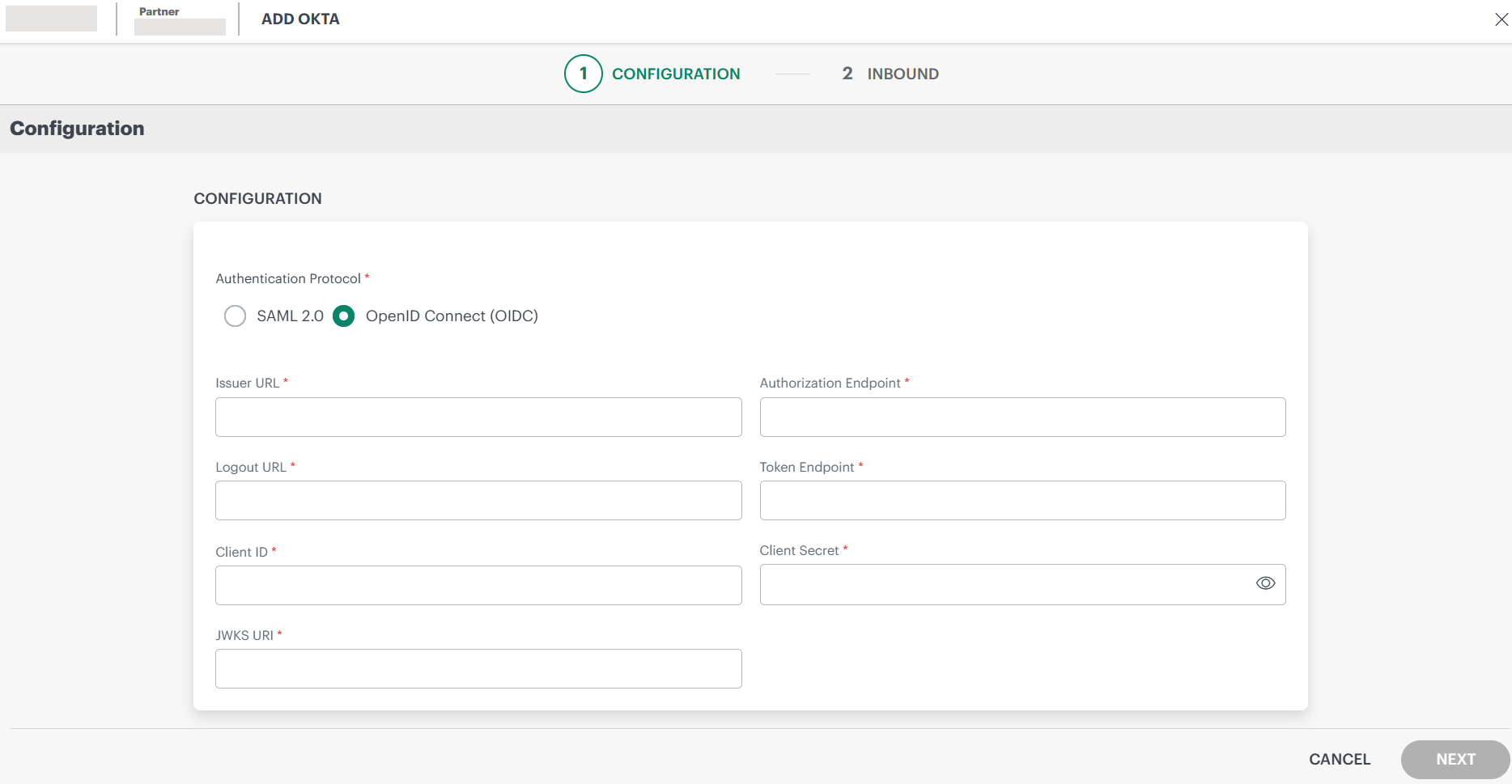
Authentication Protocol: Select OpenID Connect (OIDC).
Enter the following information in the Configuration page:
- Issuer URL (Required): The base URL that identifies the authorization server. It is used to validate tokens and discover OIDC configuration metadata.
Example:https://trial-3593294.okta.com/oauth2/default - Authorization Endpoint (Required): The endpoint used to initiate the authentication request. It redirects to Okta for user authentication and consent.
Example:https://trial-3593294.okta.com/oauth2/default/v1/authorize - Logout URL (Required): The endpoint used to log out of the Okta session and optionally redirect after logout.
Example:https://trial-3593294.okta.com/oauth2/default/v1/logout - Token Endpoint (Required): The endpoint used to exchange an authorization code for access and ID tokens.
Example:https://trial-3593294.okta.com/oauth2/default/v1/token - Client ID (Required): A unique identifier assigned to the application during registration in Okta. It is used to identify the client during authentication requests.
Example:0oa1b2c3D4e5F6g7H8i9 - Client Secret (Required): A confidential key generated by Okta for the application. It is used to authenticate the client when requesting tokens from the token endpoint.
Example:0Oa1b2c3D4e5F6g7H8i9J0k1L2m3N4o5P6q7R8s9 - JWKS URI (Required): The JSON Web Key Set (JWKS) endpoint that provides the public keys used to verify the signature of ID tokens and access tokens issued by Okta.
Example:https://trial-3593294.okta.com/oauth2/default/v1/keys
- Issuer URL (Required): The base URL that identifies the authorization server. It is used to validate tokens and discover OIDC configuration metadata.
Provision Username as: There are two ways to provision a user. Select the appropriate option:
Identify Provider’s Name Identifier option is selected by default. The user which is created in the SSO portal will reflect in OpsRamp.
Identify Provider’s Name Identifier with OpsRamp tenant-unique prefix: This option allows you to:
- Create usernames with a unique 3-digit alphanumeric prefix, that is generated automatically by the system.
- Install the same identity provider across multiple OpsRamp tenants.
Note: Once you enable this option and install the integration, you cannot revert your changes.
Example: There are three partners, Partner P1, P2, and P3. Each partner has usernames created with unique 3-digit alphanumeric prefix, like g0z.username1 for partner P1, p0w.username1 for partner P2, and t9q.username1 for partner P3.
Click Next.
In the Inbound page, there are two sections: USER PROVISION and MAP ATTRIBUTES.
USER PROVISION
OpsRamp supports two user provisioning methods to onboard users from identity providers like Okta:
- JIT
- NONE: Only the existing users will be able to login.
JIT
Following section describes JIT provisioning in detail.
In the Inbound page:
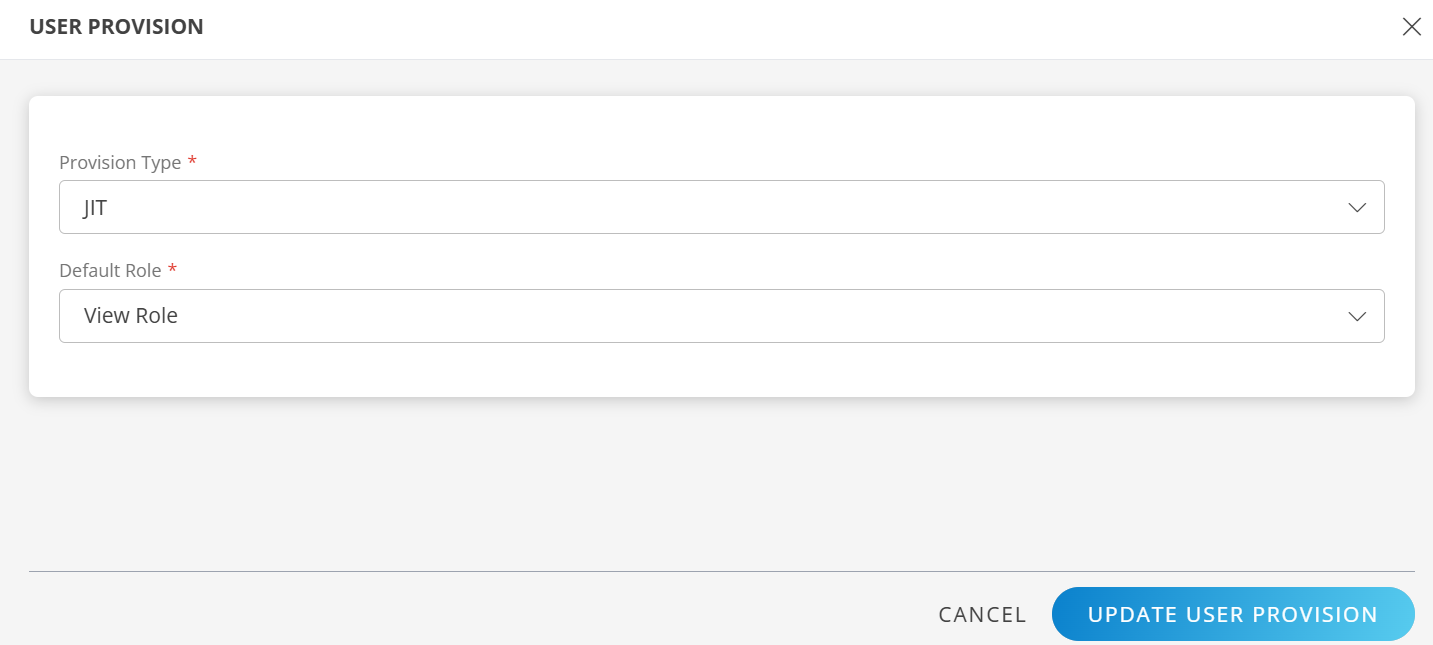
- Click Edit icon and select the following details and click UPDATE USER PROVISION:
- Provision Type: JIT. When configuring the integration it is necessary to select the Provision Type - JIT to synchronize users when provisioning occurs.
- Default Role: The required user role.
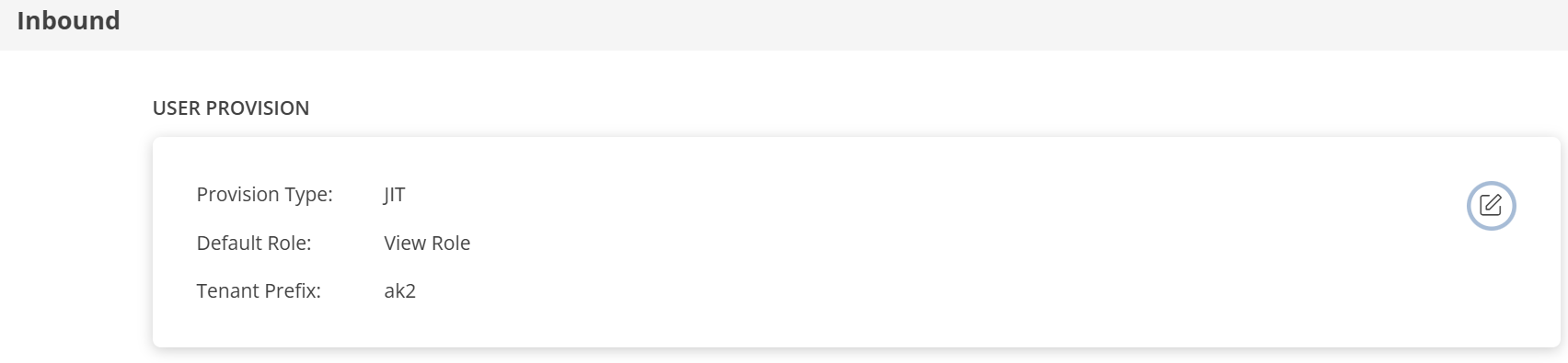
The details are updated and the USER PROVISION section displays the unique Tenant Prefix. These details are used when configuring Okta Provisioning settings.
MAP ATTRIBUTES
Define the following Map Attributes:
Note:
- For JIT: The OpsRamp properties like Primary Email, First Name, Last Name, and Role are required.
- Click +Add in the Map Attributes section.
- From the Add Map Attributes window, enter the following information:
User:
- Select OpsRamp Entity as User and OpsRamp Property as Role.
Role mapping is required for User and User Group.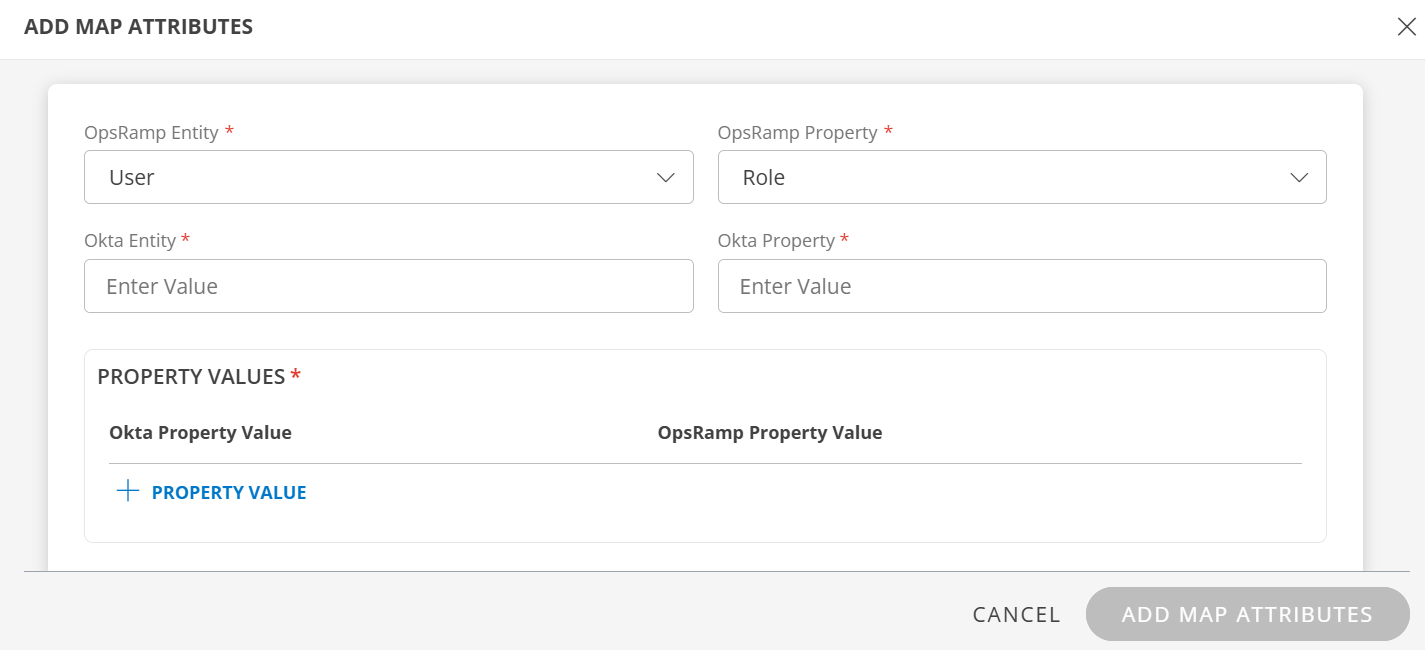
- Okta Entity: Enter the value.
- Okta Property: Enter the value.
In PROPERTY VALUES section: - Okta Property Value: The user details in the OIDC ID token claims received by OpsRamp contains the field information. Ensure that you provide the value of the field in this box.
- Example ID token claims:
{ "sub": "00upcikgqpH6esdAN0h7", "name": "user name1", "given_name": "user", "family_name": "name1", "email": "user.name1@opsramp.com", "email_verified": true, "groups": [ "Everyone", "OpsRamp-Admins" ], "zoneinfo": "America/Los_Angeles", "phone_number": "+1-1234567890" } - OpsRamp Property Value: Select the appropriate role corresponding to the Okta Property Value.
- Click Save. The mapping is saved and displayed.
To add more property values click +Property Value.
Use the Filter option to filter the map attributes.
Similarly, map attributes for other entities.
Note: If mapping for Time Zone is not provided, then organization timezone is considered by default.
User Group:
- Select OpsRamp Entity as User Group and OpsRamp Property as Role.
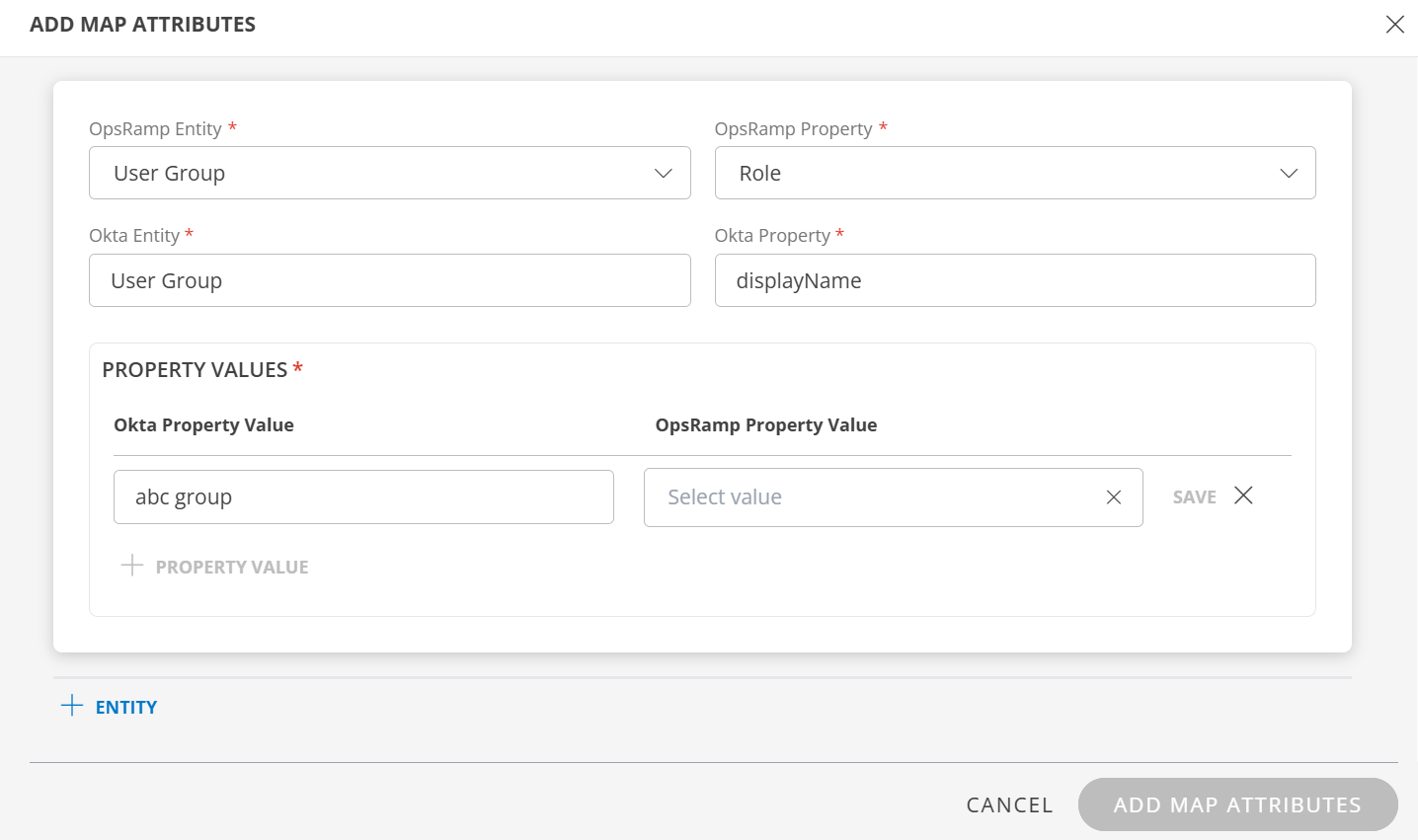
- Okta Entity: Enter the value.
- Okta Property: Enter the value.
In PROPERTY VALUES section: - Okta Property Value: The user group details in the OIDC token claims received by OpsRamp contains the field information. Ensure that you provide the value of the field in this box.
- Example groups claim:
     {
         "groups": [
             "OpsRamp-Admins",
             "OpsRamp-Viewers"
         ]
     }
In this case, you enter OpsRamp-Admins as value. If there is a match, OpsRamp provisions the user group accordingly.
- OpsRamp Property Value: Select the appropriate role corresponding to the Okta Property Value.
- Click Save. The mapping is saved and displayed.
To add more property values click +Property Value. - Click Add Map Attributes.
- Click the three dots (menu icon) available at the end of each row to edit or delete a map attribute.
If the Role is not configured in Map Attributes section, the Default Role provided in the User Provision section is considered for SSO.
- For JIT: The OpsRamp properties like Primary Email, First Name, Last Name, and Role are required.
Click Finish. The integration is installed.
Actions on Integration
You can perform actions like View Logs, Export, Edit, and Uninstall on the integration.
- See Actions on Integration for more information.
Audit Logs
View Inbound logs from the View Logs option for the integration. You can view if the event was successful or not.
See Audit Logs for more information.
Verification of SSO Integration
- From the Okta console, go to the OpsRamp OIDC Application.
- Click the General tab and verify the following settings:
- Client ID: Unique identifier for the OpsRamp application in Okta.
- Client Secret: Confidential key for the OpsRamp application.
- Sign-in redirect URIs: The OpsRamp callback URL.
- Sign-out redirect URIs: The OpsRamp logout redirect URL.
- Under Security > API > Authorization Servers, confirm the authorization server endpoints match what was entered in OpsRamp:
- Issuer URL
- Authorization Endpoint
- Token Endpoint
- JWKS URI
- Logout URL
Provision a User
After configuring the OpsRamp-Okta OIDC integration, you can provision users using JIT provisioning.
In the OpsRamp UI …
- Navigate to Setup > Account.
- On the Clients page, search for the client and click on the client name.
- Copy the subdomain part of the Website URL, which you need to specify in Okta. For example, copy the
okta-certpart ofokta-cert.app.opsramp.com.
On the Okta console …
Assign users to the OIDC application:
- Navigate to Applications > Applications and select your OpsRamp OIDC application.
- Click the Assignments tab.
- Click Assign and choose Assign to People or Assign to Groups.
- Search for and select the user or group to assign.
- Click Assign and then click Done.
Add a new user (if needed):
- Navigate to Directory > People and click Add Person.
- Enter the required personal information. The Username must be an email address.
- For the Password field, choose Set by admin and enter a password.
- Click Save. A Person added! message displays.
- Assign the new user to the OpsRamp OIDC application as described above.
In the OpsRamp UI …
- Navigate to Setup > Account.
- Click Users and Permissions tile and from Users card, after a short delay, verify that the provisioned Okta user is added to the user list upon first login via JIT provisioning.
Unprovision a User
On the Okta console …
- Navigate to Applications > Applications and select your OpsRamp OIDC application.
- Choose the Assignments tab.
- Click the X for the user to remove in the user list.
- Click OK to confirm that you want to unassign the user.
In the OpsRamp UI …
Refresh the Setup > Account > Users page to confirm the user is deactivated or removed from the list.
Note:
- OIDC uses JIT provisioning; users are created automatically in OpsRamp upon their first successful login.
- Ensure the groups claim is included in the Okta ID token by adding a groups claim to the authorization server policy in Okta.
- Username created should be unique across clients.
- The Client Secret must be kept confidential. Rotate it immediately if it is exposed.